Today, you'll learn how to create data entry forms that use the low-level Open Database Connectivity (ODBC) API routines to access existing databases. The ODBC API interface provides an alternative to using the Microsoft JET to access data. The ODBC interface is usually faster than Microsoft JET and uses up less workstation memory than Microsoft JET, too. The ODBC interface is capable of accessing data in client-server databases, desktop ISAM databases (such as dBASE, FoxPro, and so on), Microsoft Access format databases, and even Excel spreadsheets and text files.
Although data access via ODBC is fast, you can only work with snapshot-type data sets. All data access is done using SQL statements to pass data to and from the ODBC data source. Also, data access via the ODBC API requires more code than using data controls or Visual Basic programming code. For these reasons, the ODBC API is not a good choice for every program. After you get an idea of what it takes to write a Visual Basic program using ODBC for data access, you can decide for yourself when to use the ODBC for data access.
In today's lesson, you'll learn how to install the ODBC Administrator on your system and how to use the administrator program to define and register an ODBC data source for use with the ODBC API interface. We'll also briefly discuss the ODBC operational model and show you the minimum ODBC APIs you'll need to create your own database programs using the ODBC interface.
You will then use your knowledge of the ODBC API to construct a code library that will contain the essential API calls and a series of wrapper routines that you can use with all your Visual Basic programs to create data entry screens for ODBC data sources. Finally, you'll build a Visual Basic data entry form that will call the library routines and show you how to implement a simple subform using standard Visual Basic controls.
When you complete this Day's lesson, you will know how to register new data sources using the ODBC Administrator program. You will also have a code library you can use to build solid Visual Basic applications that bypass the Microsoft JET and use the ODBC API set to read and write databases.
NOTE: Throughout today's lesson, you will be working exclusively in the 16-bit version of Visual Basic 4.0. The 16-bit version has a slightly different ODBC Administrator program and uses different API calls than the 32-bit version. If you have been using the 32-bit version of Visual Basic 4.0 for the other chapters, switch to the 16-bit version for today. The information you learn here can easily be transported to the 32-bit version later. After you learn how to use the 16-bit version of the ODBC API, you can modify the API calls to use the ODBC32.DLL to gain access to the 32-bit ODBC drivers installed on your workstation.
The Open Database Connectivity (ODBC) interface is a direct interface between your Visual Basic program and the target database. This interface has been developed by Microsoft as a way to provide seamless access to external data formats. The first versions of ODBC were a bit buggy and, in some cases, slow. Although the ODBC interface is now understood to be one of the fastest data interfaces available, many programmers still mistakenly think the ODBC interface is too slow for production applications. This is not the case. As you'll see in today's lesson, using the ODBC interface is usually faster than using the Microsoft JET database engine.
When you use the Microsoft JET interface to access an ODBC data source, the Microsoft JET does the talking to the ODBC interface, which then talks to the intermediate driver which talks to the data source your Visual Basic program requested. When you use ODBC API calls, you bypass the Microsoft JET layer and your Visual Basic program talks directly to the ODBC interface. Figure 19.1 shows how this looks on paper.
The difference between ODBC and Microsoft JET interfaces.
The ODBC interface doesn't really talk to databases. Instead, it links your Visual Basic program to defined data sources. These sources of data could be flat-file databases (such as dBASE and FoxPro), relational databases (such as Microsoft Access and SQL Server), or any file format for which an ODBC interface driver is available. For example, Microsoft provides an ODBC interface driver for Excel spreadsheets and even delimited text files. As long as a driver is available, you can use ODBC to access the data.
Even more importantly, when you use the ODBC interface to link to a data source, your Visual Basic program is not really talking to the data source directly. Your program talks to the ODBC front end alone. The ODBC front end uses removable drivers to translate your requests into a format understood by the target data source. The ODBC drivers exist as a middleman between the ODBC front end and the target data file. Your Visual Basic programs talk to the ODBC front end. The ODBC front end talks to the appropriate driver. The driver talks to the target data file. The advantage of this design is that you can easily replace the translator routines (the drivers) to add improved performance or functionality without having to change your Visual Basic program or the target data source. Also, because the ODBC interface rules are published information, anyone who wants to make data available to users can create a new driver, and that driver can then work with all the installed versions of the ODBC interface that already exist.
Using the ODBC API interface has its limits, however. When you use the ODBC API to select and retrieve data, you are actually dealing with Snapshot-type data objects. You collect a set of data, bring it to your machine, make additions or modifications to the data set, and send those changes back to the data source. Although this is fast, it can be a bit cumbersome. Also, when you use the ODBC API interface, you are not able to use any data-bound controls. You are responsible for reading the data, placing it into form controls, and moving the data from the form controls back to the data source when needed. This means you have more programming to do before you get a data entry form up and running. Even with these drawbacks, using the ODBC API to access your data can add increased flexibility to your Visual Basic database programs.
The most recent version of the ODBC interface is included in the Visual Basic 4.0 installation files. If you did not install the ODBC interface when you first installed Visual Basic 4.0, you need to do it now in order to continue the lesson. If you have already installed the ODBC interface, you can skip this section and move on to the section on how to define and register your own ODBC data sources.
NOTE: You might also have other software packages that installed the ODBC interface on your system. Look for a program called ODBCADM.EXE. If you do not find this program, refer to the Visual Basic 4.0 install disks or CD to install the ODBC interface.
For your lesson today, you will only use the 16-bit version of the ODBC interface. This version works on both 16-bit and 32-bit systems. If you are using Window NT or Windows 95, be sure you are using the ODBCADM.EXE administrator.
The ODBC kit that ships with Visual Basic 4.0 contains drivers for SQL Server and the Microsoft Code Page Translator. Installing these drivers allows your Visual Basic 4.0 apps to access data stored in SQL Server databases. However, there are also drivers available for accessing desktop file formats such as dBASE, FoxPro, Microsoft Access, and Excel spreadsheets.
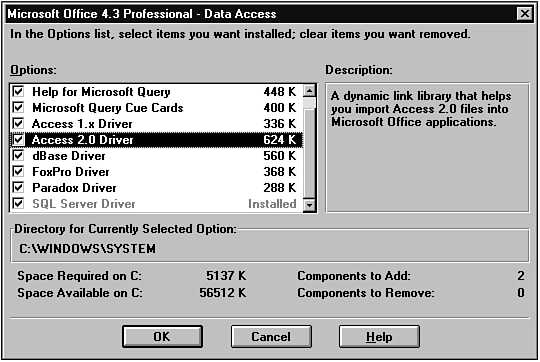
One of the best collections of ODBC drivers for desktop databases is included in Microsoft Office. If you have Microsoft Office, you probably already have these drivers on file. If not, you can run the SETUP.EXE program in the Microsoft Office SETUP directory to install the desktop ODBC drivers (see Figure 19.2).
Installing the desktop ODBC drivers with Microsoft Office.
If you do not have the Microsoft Office ODBC kit, you can still install the ODBC drivers that are shipped with Visual Basic 4.0. Run the SETUP.EXE program in the ODBC subdirectory of the main Visual Basic 4.0 directory. This will allow you to install the ODBC administrator and any drivers currently available (see Figure 19.3).
NOTE: If you cannot find the ODBC subdirectory under the Visual Basic 4.0 main directory, make sure you are running the 16-bit version of Visual Basic 4.0. You must be running this project under the 16-bit version of Visual Basic 4.0 to make sure the API calls and the ODBC interface work properly.
Installing the ODBC drivers from Visual Basic 4.0.
Now that you have the ODBC Administrator installed, you are ready to define an ODBC data source that you can use with your Visual Basic 4.0 programs.
The ODBC interface is based on the idea that defined data sources are available for users and programs to access. Each desktop has its own list of available ODBC data sources. On 16-bit systems, this list of ODBC data sources is kept in the ODBC.INI file in the \WINDOWS\SYSTEM directory. On 32-bit systems, the information is stored in the registry under the SOFTWARE/ODBC keys.
WARNING: Even though you can call up the ODBC.INI file with a text editor or open the Windows Registry using REGEDIT.EXE, we do not recommend that you alter these entries using anything other than the ODBC Administrator program. Incorrect data in the ODBC entries in the .INI file or in the registry can cause the ODBC interface to behave unpredictably or fail completely.
Each of these entries contains basic information about the defined data source, the drive used to access the data, and possibly additional information depending on the data source and driver used. It is easy to define and register a new ODBC data source. As an illustration, create an ODBC data source that you can use later in this lesson.
First, load the ODBC Administrator program. To do this, locate and execute the ODBCADM.EXE program.
NOTE: Throughout the lesson today, you will use the 16-bit version of the ODBC driver kit. There are slight differences between the 16-bit and 32-bit ODBC administrators. Even if you are running on a 32-bit operating system (NT or Windows 95), you will still be able to use the 16-bit ODBC administrator. After you learn how to use the 16-bit ODBC API, you can modify the API routines to use the ODBC32.DLL and access the 32-bit ODBC drivers installed on your machine.
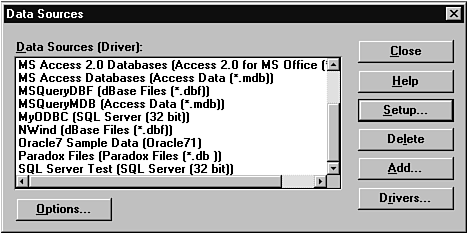
When you first start the ODBC Administrator, you see a dialog box that lists all the data sources that are currently registered for your workstation (see Figure 19.4).
Viewing the registered ODBC data sources.
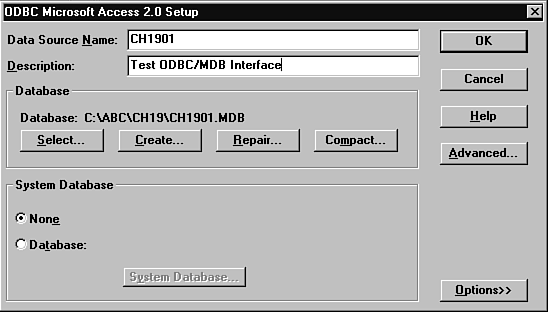
To define a new ODBC data source, click the Add button to bring up the Add Data Source dialog box. Select the Access 2.0 for Microsoft Office (*.MDB) driver and click the OK button. You then see the data entry dialog for creating a new ODBC data source (see Figure 19.5).
Adding a new data source.
Enter TYSODBC in the Data Source Name field and Test ODBC/MDB Interface in the Description field. The Data Source name is the string you will use when you call the ODBC connection from your Visual Basic 4.0 program. The description is just a comment to remind you of the contents of the data source.
Now click the Select Database command button to bring up a File dialog box. Locate and select the C:\TYSDBVB\CHAP19\TYSODBC.MDB database. This is the database that your program will connect to each time it calls the ODBC data source name TYSODBC. Your screen should now resemble the one in Figure 19.6.
The completed ODBC data source registration.
Click the OK button to store the new Data Source definition to the ODBC .INI file. You should now be able to see the TYSODBC data source in the list box in the first ODBC dialog form.
As a source of reference, the following code shows the entries in the ODBC.INI file that were created when you added the TYSODBC data source. Your entries might vary slightly.
 [TYSODBC]

Driver=C:\WINDOWS\SYSTEM\ODBCJT16.DLL

DBQ=C:\TYSDBVB\CHAP19\TYSODBC.MDB

DefaultDir=C:\ABC\CH19

Description=Test ODBC/MDB Interface

DriverId=25

FIL=MS Access;

JetIniPath=odbcddp.ini

UID=admin
You can register as many data sources as you like. You can add various options to the data source definition depending on the target data file you are working with. For example, with Microsoft JET databases, you can add the SYSTEM security file to the data source to force users to provide valid user IDs and passwords. You can also adjust time-out values and mark the data source for exclusive use only. There are other possible entries for other data file formats, as well.
TIP: Review the ODBC Administrator online help file for more on how to configure ODBC data sources.
Now that you know how to define ODBC data sources, you are ready to put together a Visual Basic 4.0 program that uses the ODBC interface to read and write data. In order to build your ODBC application, you will need to declare several Windows API (Application Programming Interface) calls. These calls, along with a handful of predefined constants are the heart of creating an ODBC capable database program. We won't review all the ODBC API calls in this chapter—only the essential ones you'll need to get your ODBC application working.
TIP: Visual Basic 4.0 ships with an API viewer that lets you search for a particular API call and then copy and paste the information from the viewer directly to your Visual Basic 4.0 application. Two other files also ship with Visual Basic 4.0 and contain all the ODBC API declarations and constants. Search for the files ODBC16.TXT and ODBC32.TXT. These two files contain more than you'll ever want to see on ODBC APIs.
After you declare the basic APIs, you need to create a set of Visual Basic routines that use these APIs to perform the low-level operations that are needed to execute ODBC commands from Visual Basic. After the low-level routines, you'll write a few mid-level functions that hide most of the grittier features of API programming. Finally, you'll create a few high-level routines that you can use from any Visual Basic data entry form to start off and maintain your ODBC connections.
There are dozens of possible API calls for the ODBC interface. You can write calls that enable you to inspect the type of ODBC driver you are using, calls to inspect the various details of the data source (database name, format, and so on), calls to gather information about the data set (column names, data types for each field, length of each field, and so on), and calls to actually connect to the data source and move data to and from the ODBC data source. For this lesson, you will focus only on those routines that you need in order to move data back and forth through the ODBC interface.
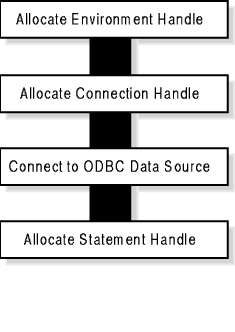
Before you start coding the API calls and wrapper routines, you need to review the basic sequence of ODBC events that are required to connect to and share data with a registered ODBC data source. There are several preliminary steps involved before you can actually get any data from an ODBC data source. These steps involve defining an environment space for the ODBC connection, completing the actual connection, and then establishing an area of memory for passing data back and forth. Many of the API calls require or return unique values (called handles) to identify the memory spaces reserved for the ODBC interface. Most of the preliminary work for establishing an ODBC connection involves creating the handles you will use throughout your program. Figure 19.7 shows these operations.
The preliminary steps to establish an ODBC data source connection.
When the connection is established, you can easily share data with the target data source using standard SQL statements. You can select a set of rows using the SELECT...FROM statement. Whenever you request a data set from the ODBC source, you need to go through several steps to actually pass the rows and columns from the source to your Visual Basic program. First, you execute the SQL statement. Then, in order to receive the data set, you must determine the number of columns to receive, and then use that information to tell ODBC to queue up a row of data and send you each column in the row. You do this until you have received all the rows in the data set. Figure 19.8 illustrates the process of executing the SELECT statement and collecting the resulting data.
Collecting results of a SELECT query from an ODBC data source.
You can perform single record adds, updates, and deletes using SQL INSERT, UPDATE, and DELETE statements. You accomplish this by simply sending the SQL statement to the data source. You can even perform data table CREATE and DROP statements for most data sources.
The last set of ODBC routines that you need to call from Visual Basic are the ones that safely close down the ODBC interface before your program exits. The shutdown routine is basically the same as the startup routine in reverse. First, you need to release the statement handle; then, close the ODBC connection and release the connection handle. Finally, you release the environment handle.
Throughout the process of communicating with the ODBC interface, you need to check for any error codes returned by ODBC. Because the functions are executing outside your Visual Basic program, ODBC errors do not automatically invoke your Visual Basic error handler. Every major ODBC call returns either a success code or an error code. After you execute an ODBC API call, you need to check the return code. If it indicates that an error occurred, you can also call an ODBC routine that returns the detailed error message generated by the data source. When you build your ODBC library, you'll write a routine to perform this error checking.
The first thing you need to do to build your library is to declare the necessary API calls for the ODBC interface. In your project, you'll declare only a subset of the total ODBC API calls. These are the ones that are essential for creating a basic data entry form. You also need a handful of Visual Basic constants that you'll use throughout the library.
Load the 16-bit Visual Basic 4.0 and start a new project. Add a .BAS module to the project and set its Name property to APIODBC. Add the API calls in Listing 19.1 to the project.
TIP: If you want to save yourself some typing (and possible typing errors), you can find the APIODBC.BAS file in the C:\TYSDBVB directory. You can load this file into your project using File | Add File from the main menu.
Listing 19.1. The ODBC API declarations.
Option Explicit

'

' 16 bit ODBC Declares

Declare Function SQLAllocEnv Lib "odbc.dll" (env As Long) As Integer

Declare Function SQLFreeEnv Lib "odbc.dll" (ByVal env As Long) As Integer

Declare Function SQLAllocConnect Lib "odbc.dll" (ByVal env As Long,

hdbc As Long) As Integer

Declare Function SQLConnect Lib "odbc.dll" (ByVal hdbc As Long,

ByVal Server As String, ByVal serverlen As Integer, ByVal uid As String,

ByVal uidlen As Integer, ByVal pwd As String,

ByVal pwdlen As Integer) As Integer

Declare Function SQLFreeConnect Lib "odbc.dll" (ByVal hdbc As Long) As Integer

Declare Function SQLDisconnect Lib "odbc.dll" (ByVal hdbc As Long) As Integer

Declare Function SQLAllocStmt Lib "odbc.dll" (ByVal hdbc As Long,

hstmt As Long) As Integer

Declare Function SQLFreeStmt Lib "odbc.dll" (ByVal hstmt As Long,

ByVal EndOption As Integer) As Integer

Declare Function SQLExecDirect Lib "odbc.dll" (ByVal hstmt As Long,

ByVal sqlString As String, ByVal sqlstrlen As Long) As Integer

Declare Function SQLNumResultCols Lib "odbc.dll" (ByVal hstmt As Long,

NumCols As Integer) As Integer

Declare Function SQLFetch Lib "odbc.dll" (ByVal hstmt As Long) As Integer

Declare Function SQLGetData Lib "odbc.dll" (ByVal hstmt As Long,

ByVal Col As Integer, ByVal wConvType As Integer, ByVal lpbBuf As String,

ByVal dwbuflen As Long, lpcbout As Long) As Integer

Declare Function SQLError Lib "odbc.dll" (ByVal env As Long,

ByVal hdbc As Long, ByVal hstmt As Long, ByVal SQLState As String,

NativeError As Long, ByVal Buffer As String, ByVal Buflen As Integer,

OutLen As Integer) As Integer
These are the ODBC API calls needed to implement basic connect, data transfer, and disconnect. Now add the constants in Listing 19.2 to the module.
Listing 19.2. The ODBC constant declarations.
' SQL/ODBC Constants

Global Const gSQLSuccess = 0

Global Const gSQLSuccessWithInfo = 1

Global Const gSQLError = -1

Global Const gSQLNoDataFound = 100

Global Const gSQLClose = 0

Global Const gSQLDrop = 1

Global Const gSQLMaxMsgLen = 512

Global Const gSQLChar = 1
Save the module as APIODBC.BAS, and save the project as TYSODBC.VBP. Now you are ready to build the library functions that use these API calls to perform ODBC operations.
The next set of routines are separated into two groups. The first group are routines that deal primarily with the ODBC interface. These routines are just wrappers for the API calls. Wrappers are Visual Basic routines that encapsulate the API call. Using wrappers makes it easy to change the underlying API call without having to change your code. For example, if you want to use the 32-bit version of the ODBC, you only need to change the ODBC.DLL in each of the API calls to ODBC32.DLL. Because you are using Visual Basic wrappers, you won't have to make any changes to your Visual Basic programs in order to use 32-bit ODBC!
The second set of library routines deals primarily with Visual Basic. These routines take the data from the ODBC and store it in Visual Basic variables and controls for use on your data entry forms.
First, you need to add a few global variables that you'll use throughout the library. Add a new .BAS module to the project and set its Name property to LIBODBC. Now add the declarations in Listing 19.3 to the file.
Listing 19.3. Adding the local variables to LIBODBC.BAS.
Option Explicit

' Local ODBC Vars

Global Const ODBCBuffer = 256   ' for fixed length vars

Global gblHenv As Long          ' environment handle

Global gblHdbc As Long          ' database connection

Global gblHstmt As Long         ' statement handle

Global gblNumCols As Integer    ' result set columns

Global ODBCDataSource As String ' data source name

Global ODBCUserID As String     ' user id

Global ODBCPassword As String   ' user password

Global ODBCQuery As String      ' initial startup SQL
Now you're ready for the first set of Visual Basic routines.
These routines handle the direct calls to the ODBC API and provide simple error checking. The first of the routines allocates an environment handle. This handle is needed before you can attempt to connect to the ODBC interface.
Create a new function called ODBCEnvironment and add the code in Listing 19.4.
Listing 19.4. Coding the ODBCEnvironment function.
Function ODBCEnvironment(hEnv As Long)

    '

    ' establish an ODBC environment

    '

    ' inputs:

    '   hEnv    var to hold returned value

    '

    ' output:

    '   hEnv    set to unique handle value

    '

    ' returns:  gSQLSuccess if OK, oer errcode

    '

    Dim nResult As Integer

    Dim Temp As Integer

    '

    nResult = SQLAllocEnv(hEnv)

    If nResult <> gSQLSuccess Then

        MsgBox "Cannot allocate environment handle.", vbCritical,

"ODBCEnvironment"

        Screen.MousePointer = vbDefault

    End If

    ODBCEnvironment = nResult

    '

End Function
This routine calls the SQLAllocEnv API and checks for any errors. The SQLAllocEnv API establishes an environment for all ODBC transactions for this session. The hEnv parameter that you pass to the function is a variable of the LONG data type. This will hold a unique number that identifies all transactions that pass from your Visual Basic program to the ODBC interface.
Create a new function called ODBCConnect, as shown in Listing 19.5. This routine handles the details of completing a connection to the ODBC data source.
Listing 19.5. Coding the ODBCConnect function.
Function ODBCConnect(hEnv, hdbc As Long, hstmt As Long, cDataSource As String,

cUserID As String, cPassword As String) As Integer

    '

    ' connect to remote data source

    '

    ' inputs:

    '   hEnv        environment handle from ODBCEnvironment

    '   hdbc        database connect var (will be set)

    '   hstmt       statement var (will be set)

    '   cDataSource name of ODBC data source

    '   cUserID     ODBC user login ID

    '   cPassword   ODBC login password

    '

    ' outputs:

    '   hdbc        database connection handle

    '   hstmt       statement handle

    '

    ' returns       gSQLSuccess or error code

    '

    Dim nResult As Integer

    Dim Temp As Integer

    '

    ODBCConnect = gSQLSuccess

    ' get a connection handle

    nResult = SQLAllocConnect(hEnv, hdbc)

    If nResult <> gSQLSuccess Then

        MsgBox "Unable to allocate connection handle.", vbCritical,

        "ODBCConnect.SQLAllocConnect"

        Screen.MousePointer = vbDefault

        ODBCConnect = nResult

        Exit Function

    End If

    ' now attempt to connect to database

    nResult = SQLConnect(hdbc, cDataSource, Len(cDataSource), cUserID,

    Len(cUserID), cPassword, Len(cPassword))

    If nResult <> gSQLSuccess And nResult <> gSQLSuccessWithInfo Then

        MsgBox "Unable to establish DataSource connnection.", vbCritical,

        "ODBCConnect.SQLConnect"

        Screen.MousePointer = vbDefault

        ODBCConnect = nResult

        Exit Function

    End If

    ' now get handle for all future statements

    nResult = SQLAllocStmt(hdbc, hstmt)

    If nResult <> gSQLSuccess Then

        MsgBox "Unable to allocate statement handle.", vbCritical,

        "ODBCConnect.AllocStmt"

        Screen.MousePointer = vbDefault

        ODBCConnect = nResult

        Exit Function

    End If

    '

End Function
The routine in Listing 19.5 takes several parameters and uses them to perform three basic ODBC operations. The first operation is establishing a data source connection handle. The second operation is the actual attempt to connect to the data source. The cDataSource, cUserID, and cPassword parameters are used for this. You'll see how to initialize these parameters later in this chapter. The final ODBC operation is to establish an ODBC statement handle. This handle will be used as the unique identifier whenever you want to share data with the ODBC data source.
You will also need to disconnect the ODBC link when you exit the program. Create a new function called ODBCDisconnect and add the code Listing 19.6.
Listing 19.6. Coding the ODBCDisconnect function.
Function ODBCDisconnect(hdbc As Long, hstmt As Long) As Integer

    '

    ' disconnect from data source

    '

    ' inputs:

    '   hdbc    database connection handle

    '   hstmt   statement handle

    '

    ' outputs:

    '   none

    '

    ' returns:  True if ok, False if error

    '

    Dim nResult As Integer

    '

    ODBCDisconnect = True

    '

    ' close statement handle

    If hstmt <> 0 Then

        nResult = SQLFreeStmt(hstmt, gSQLDrop)

        If nResult <> gSQLSuccess Then

            ODBCDisconnect = False

        End If

    End If

    '

    ' disconnect from ds

    If hdbc <> 0 Then

        nResult = SQLDisconnect(hdbc)

        If nResult <> gSQLSuccess Then

            ODBCDisconnect = False

        End If

    End If

    '

    ' close connection

    If hdbc <> 0 Then

        nResult = SQLFreeConnect(hdbc)

        If nResult <> gSQLSuccess Then

            ODBCDisconnect = False

        End If

    End If

    '

End Function
You can see that Listing 19.6 performs the same three functions as ODBCConnect, only this time in reverse. First, it releases the statement handle, and then it performs the actual disconnect of the ODBC interface. Finally, the routine releases the connection handle.
Of course, you'll need a routine to release the environment handle, too. Create the ODBCFreeHandle function and enter the code in Listing 19.7.
Listing 19.7. Coding the ODBCFreeHandle function.
Function ODBCFreeHandle(hEnv As Long) As Integer

    '

    ' release environment handle

    '

    ' inputs:

    '   hEnv    environment handle var

    '

    ' outputs:

    '   none

    '

    ' returns   True if OK, False if error

    '

    Dim nResult As Integer

    '

    ODBCFreeHandle = True

    '

    If hEnv <> 0 Then

        nResult = SQLFreeEnv(hEnv)

        If nResult <> gSQLSuccess Then

            ODBCFreeHandle = False

        End If

    End If

    '

End Function
This is a simple routine. It simply tells the ODBC interface that you are done with the session and returns any resulting codes.
The last mid-level routine you need is an ODBC error routine. This routine will gather any error information sent to your Visual Basic program from the ODBC data source. ODBC data sources are capable of sending more than one line of error information. For this reason, you'll write the routine as a loop that continues to ask for error messages until there are none to be found.
Create a new function called ODBCErrMsg and enter the code in Listing 19.8.
Listing 19.8. Coding the ODBCErrorMsg function.
Sub ODBCErrorMsg(hdbc As Long, hstmt As Long, cTitle As String)

    '

    ' return detailed SQL Error

    '

    ' inputs:

    '   hdbc    database connection handle

    '   hstmt   statement handle

    '   cTitle  error message title

    '

    Dim SQLState As String * 16

    Dim ErrorMsg As String * gSQLMaxMsgLen

    Dim ErrMsgSize As Integer

    '

    Dim ErrorCode As Long

    Dim ErrorCodeStr As String

    Dim nResult As Integer

    Dim Temp As Integer

    '

    SQLState = String$(16, 0)

    ErrorMsg = String$(gSQLMaxMsgLen - 1, 0)

    '

    Do

    '

        nResult = SQLError(0, hdbc, hstmt, SQLState, ErrorCode, ErrorMsg,

        Len(ErrorMsg), ErrMsgSize)

        Screen.MousePointer = vbDefault

        If nResult = gSQLSuccess Or nResult = gSQLSuccessWithInfo Then

            If ErrMsgSize = 0 Then

                Temp = MsgBox("gSQLSuccess Or gSQLSuccessWithInfo Error

                -- No additional information available.",

                vbExclamation, cTitle)

            Else

                If ErrorCode = 0 Then

                    ErrorCodeStr = ""

                Else

                    ErrorCodeStr = Trim$(Str(ErrorCode)) & "   "

                End If

                Temp = MsgBox(ErrorCodeStr & Left$(ErrorMsg, ErrMsgSize),

                vbExclamation, cTitle)

            End If

        End If

        '

    Loop Until nResult <> gSQLSuccess

    '

End Sub
This routine checks the state of the error code and returns any messages it can find. There are times when the error code is set by ODBC, but no message is returned. The routine checks for this and creates its own message, if needed.
Save this module as LIBODBC.BAS before you continue on with the last set of ODBC library routines.
The last set of ODBC library routines deals primarily with the duties required to make Visual Basic capable of displaying, reading, and writing data via the ODBC interface. These routines take the data sets returned by ODBC and store them in Visual Basic list and grid controls. These controls are then used as holding areas by your Visual Basic program for filling and updating text boxes on your data entry form. This method of storing result sets in a Visual Basic control reduces the amount of traffic over the ODBC link and improves the response time of your program.
NOTE: In the examples here, you access relatively small data sets. If your ODBC interface requires the passing of very large data sets, you need to develop more sophisticated methods for storing and retrieving the resulting data sets. However, it is always a good idea to limit the size of the result set as much as possible, because passing large amounts of data over the ODBC link can adversely affect not just your Visual Basic program, but all programs that are using the same network.
The first high-level routine you'll build actually creates a data set for your Visual Basic program. This routine handles the creation of the environment handle, the completion of the ODBC connection to the data source, and the passing of the initial SQL SELECT statement that creates the data set.
Create a new function called ODBCDataSet and add the code in Listing 19.9.
Listing 19.9. Coding the ODBCDataSet function.
Function ODBCDataSet(frmName As Form) As Integer

    '

    ' get data from source

    '

    Dim nResult As Integer

    '

    ' declare an enviforment handle

    nResult = ODBCEnvironment(gblHenv)

    If nResult = gSQLSuccess Then

        ' connect to data source

        nResult = ODBCConnect(gblHenv, gblHdbc, gblHstmt, ODBCDataSource,

        ODBCUserID, ODBCPassword)

        If nResult = gSQLSuccess Then

            ' build data set for list box

            nResult = ODBCLoadCtl(frmName.LstODBC, ODBCQuery, gblHstmt,

            False, "*")

            ' build data set for grid control

            nResult = ODBCLoadCtl(frmName.GrdODBC, ODBCQuery, gblHstmt,

            False, "*")

        End If

    End If

    '

    ODBCDataSet = nResult

    '

End Function
The routine in Listing 19.9 expects you to pass it a form variable. This form must contain a list box and a grid control. These controls are filled with the records from the data set created by the SQL SELECT Statement. This routine calls a new function called ODBCLoadCtl that you have not yet defined. You'll get to that a bit later in this section.
Before you look at the ODBCLoadCtl function, you need to add the function that sets the initial data source name, user ID and password, and initial SQL statement. Create a new function called ODBCStart and enter the code in Listing 19.10.
Listing 19.10. Coding the ODBCStart function.
Function ODBCStart(frmName As Form, Optional cDSN, Optional cUser,

Optional cPW, Optional cSQL) As Integer

    '

    ' main wrapper to launch ODBC

    '

    ' inputs:

    '   frmName name of data entry form

    '   cDSN    data source name

    '   cUser   data source user login ID

    '   cPW     data source password

    '   cSQL    initial SELECT statement

    '

    ' check for passed parms

    If IsMissing(cDSN) Then

        cDSN = ""

    End If

    '

    If IsMissing(cUser) Then

        cUser = ""

    End If

    '

    If IsMissing(cPW) Then

        cPW = ""

    End If

    '

    If IsMissing(cSQL) Then

        cSQL = ""

    End If

    ' check for needed inputs

    If cDSN = "" Then

        cDSN = InputBox("Enter Data Set Name to Open:", "ODBC DataSource Name")

    End If

    '

    If cUser = "" Then

        cUser = InputBox("Enter UserID:", "ODBC UserID")

    End If

    '

    If cPW = "" Then

        cPW = InputBox("Enter Password:", "ODBC Password")

    End If

    '

    If cSQL = "" Then

        cSQL = InputBox("Enter Intitial SQL Statement", "ODBC SQL Statement")

    End If

    ' now load global vars

    ODBCDataSource = cDSN

    ODBCUserID = cUser

    ODBCPassword = cPW

    ODBCQuery = cSQL

    ' now try to connect and load

    ODBCStart = ODBCDataSet(frmName)

End Function
As you can see, this routine has one required parameter and four optional ones. You must pass the form that contains the list and grid controls. You have the option of omitting the data source and other parameters. If you leave them out, the routine prompts the user for the necessary values. If you include them, the routine just stores these passed values for later use.
Now you can build the heart of the high-level library routines. The ODBCLoadCtl routine reads each row and column of data in the data set returned by the ODBC data source and stores that data into two Visual Basic controls. In effect, you are creating your own set of bound data controls for the ODBC interface. After these two controls are filled, you'll write another routine to move data from the list control to a predefined set of text boxes for user input.
Create a new function called ODBCLoadCtl and enter the code in Listing 19.11.
Listing 19.11. Coding the ODBCLoadCtl function.
Function ODBCLoadCtl(ctlName As Control, cSQL As String, hstmt As Long,

lFill As Boolean, cDelim As String) As Integer

    '

    ' perform query and

    ' load results into control

    '

    ' inputs:

    '   CtlName     name of control to load

    '   cSQL        SQL query to perform

    '   hstmt       statement handle for SQL calls

    '   lFill       flag to pad info

    '   cDelim      char value that separates fields

    '

    ' outputs:

    '   CtlName     loaded with data

    '

    ' returns:      gSQLSucess if OK or error code

    '

    Dim nResult As Integer  ' error var

    Dim Temp As Integer     ' local stuff

    Dim nRows As Integer    ' row counter

    Dim nCols As Integer    ' column counter

    Dim cBuffer As String * ODBCBuffer   ' receive buffer

    Dim cItem As String     ' output buffer

    Dim cData As String     ' output line

    Dim cOutLen As Long     ' local counter

    Dim nColWide As Integer ' width of grid column

    '

    ODBCLoadCtl = gSQLSuccess

    nColWide = 1500

    '

    ' Make sure referenced control is a list box, combo box, or grid

    If TypeOf ctlName Is ListBox Then

        ElseIf TypeOf ctlName Is ComboBox Then

        ElseIf TypeOf ctlName Is Grid Then

    Else

        ODBCLoadCtl = -3

        Exit Function

    End If

    ' Do the initial query

    nResult = SQLExecDirect(hstmt, cSQL, Len(cSQL))

    If nResult <> gSQLSuccess Then

        Call ODBCErrorMsg(gblHdbc, gblHstmt,

        "SQL Statement Error During ODBCLoadCtl")

        Temp = SQLFreeStmt(hstmt, gSQLClose)

        Screen.MousePointer = vbDefault

        ODBCLoadCtl = nResult

        Exit Function

    End If

    ' get column count

    nResult = SQLNumResultCols(hstmt, gblNumCols)

    If nResult <> gSQLSuccess Then

        Temp = SQLFreeStmt(hstmt, gSQLClose)

        Screen.MousePointer = vbDefault

        ODBCLoadCtl = nResult

        Exit Function

     End If

    ' must not have found data!

    If gblNumCols = 0 Then

        Temp = SQLFreeStmt(hstmt, gSQLClose)

        Screen.MousePointer = vbDefault

        ODBCLoadCtl = gSQLNoDataFound

        Exit Function

    End If

    ' initialize grid

    If TypeOf ctlName Is Grid Then

        ctlName.Cols = gblNumCols + 1

        ctlName.Rows = 2

    End If

    ' clear list

    If TypeOf ctlName Is ListBox Then

        ctlName.Clear

    End If

    ' clear combo box

    If TypeOf ctlName Is ComboBox Then

        ctlName.Clear

    End If

    ' initialize receive buffer

    cBuffer = String$(ODBCBuffer, 0)

    'Now load get rows and put into control

    nRows = 0

    Do

        nResult = SQLFetch(hstmt)    ' get a row

        If nResult <> gSQLSuccess Then

            If nResult = gSQLNoDataFound Then

                Temp = SQLFreeStmt(hstmt, gSQLClose)

                Screen.MousePointer = vbDefault

                If nRows > 0 Then

                    Exit Do         ' we're all done

                Else

                    ODBCLoadCtl = nResult    ' error!

                    Exit Function

                End If

            Else

                Temp = SQLFreeStmt(hstmt, gSQLClose)

                Screen.MousePointer = vbDefault

                ODBCLoadCtl = nResult

                Exit Function

            End If

        End If

        '

        ' update grid row count

        nRows = nRows + 1

        If TypeOf ctlName Is Grid Then

            ctlName.Row = nRows

        End If

        '

        ' now get each column

        cItem = ""

        cData = ""

        For nCols = 1 To gblNumCols

            nResult = SQLGetData(hstmt, nCols, gSQLChar, cBuffer,

            ODBCBuffer, cOutLen)

            If nResult <> gSQLSuccess Then

                Temp = SQLFreeStmt(hstmt, gSQLClose)

                Screen.MousePointer = vbDefault

                ODBCLoadCtl = nResult

                Exit Function

            End If

            '

            If TypeOf ctlName Is Grid Then

                ' load grid column

                ctlName.Col = nCols

                If cOutLen > 0 Then

                    ctlName.Text = Left$(cBuffer, cOutLen)

                    ctlName.ColWidth(nCols) = nColWide

                End If

            Else

                ' build single string for list/combo box

                If lFill And nCols = 1 Then

                    If cOutLen > 0 Then

                        cData = Left$(cBuffer, cOutLen)

                    Else

                        cData = ""

                    End If

                Else

                    If cOutLen > 0 Then

                        If cItem = "" Then

                            cItem = Left$(cBuffer, cOutLen)

                        Else

                            cItem = cItem & cDelim & Left$(cBuffer, cOutLen)

                        End If

                    Else

                        cItem = cItem & cDelim

                    End If

                End If

            End If

        Next nCols

        '

        ' now move string data into

        ' list/combo control.

        If cItem <> "" Then

            On Error Resume Next

            ctlName.AddItem cItem

            If Err = 0 Then

                If cData <> "" Then

                    ctlName.ItemData(ctlName.NewIndex) = Val(cData)

                End If

            Else

                MsgBox "Result Set too large to fit in control",

                vbExclamation, "ODBCLoadCtl"

                Temp = SQLFreeStmt(hstmt, gSQLClose)

                Exit Do

            End If

            On Error GoTo 0

        End If

        ' increment grid row

        If TypeOf ctlName Is Grid Then

            ctlName.Rows = ctlName.Rows + 1

        End If

    Loop

    ' fix final grid row count

    If TypeOf ctlName Is Grid Then

        ctlName.Rows = ctlName.Rows - 1

    End If

    '

    ODBCLoadCtl = gSQLSuccess

    Screen.MousePointer = vbDefault

    '

End Function
This routine does a number of things. First, you pass it several parameters that are used to create the data set and a few to control how the Visual Basic controls are loaded. You wrote the routine to be used with more than one type of data control, so there are several lines of code that check and verify the type of control you are dealing with.
Because Listing 19.11 is a rather long routine, let's break the major sections down and inspect the operations that are taking place here. The main operations of this routine are as follows:
ODBCLoadCtl = gSQLSuccess

    nColWide = 1500

    '

    ' Make sure referenced control is a listbox, combobox, or grid

    If TypeOf ctlName Is ListBox Then

        ElseIf TypeOf ctlName Is ComboBox Then

        ElseIf TypeOf ctlName Is Grid Then

    Else

        ODBCLoadCtl = -3

        Exit Function

    End If
' Do the initial query

    nResult = SQLExecDirect(hstmt, cSQL, Len(cSQL))

    If nResult <> gSQLSuccess Then

        Call ODBCErrorMsg(gblHdbc, gblHstmt,

        "SQL Statement Error During ODBCLoadCtl")

        Temp = SQLFreeStmt(hstmt, gSQLClose)

        Screen.MousePointer = vbDefault

        ODBCLoadCtl = nResult

        Exit Function

    End If
' get column count

    nResult = SQLNumResultCols(hstmt, gblNumCols)

    If nResult <> gSQLSuccess Then

        Temp = SQLFreeStmt(hstmt, gSQLClose)

        Screen.MousePointer = vbDefault

        ODBCLoadCtl = nResult

        Exit Function

     End If
' must not have found data!

    If gblNumCols = 0 Then

        Temp = SQLFreeStmt(hstmt, gSQLClose)

        Screen.MousePointer = vbDefault

        ODBCLoadCtl = gSQLNoDataFound

        Exit Function

    End If
' initialize grid

    If TypeOf ctlName Is Grid Then

        ctlName.Cols = gblNumCols + 1

        ctlName.Rows = 2

    End If

    ' clear list

    If TypeOf ctlName Is ListBox Then

        ctlName.Clear

    End If

    ' clear combo box

    If TypeOf ctlName Is ComboBox Then

        ctlName.Clear

    End If
'Now load get rows and put into control

    nRows = 0

    Do

        nResult = SQLFetch(hstmt)    ' get a row

        If nResult <> gSQLSuccess Then

            If nResult = gSQLNoDataFound Then

                Temp = SQLFreeStmt(hstmt, gSQLClose)

                Screen.MousePointer = vbDefault

                If nRows > 0 Then

                    Exit Do         ' we're all done

                Else

                    ODBCLoadCtl = nResult    ' error!

                    Exit Function

                End If

            Else

                Temp = SQLFreeStmt(hstmt, gSQLClose)

                Screen.MousePointer = vbDefault

                ODBCLoadCtl = nResult

                Exit Function

            End If

        End If

        '

        ' update grid row count

        nRows = nRows + 1

        If TypeOf ctlName Is Grid Then

            ctlName.Row = nRows

        End If
' now get each column

        cItem = ""

        cData = ""

        For nCols = 1 To gblNumCols

            nResult = SQLGetData(hstmt, nCols, gSQLChar, cBuffer,

            ODBCBuffer, cOutLen)

            If nResult <> gSQLSuccess Then

                Temp = SQLFreeStmt(hstmt, gSQLClose)

                Screen.MousePointer = vbDefault

                ODBCLoadCtl = nResult

                Exit Function

            End If

            '
If TypeOf ctlName Is Grid Then

                ' load grid column

                ctlName.Col = nCols

                If cOutLen > 0 Then

                    ctlName.Text = Left$(cBuffer, cOutLen)

                    ctlName.ColWidth(nCols) = nColWide

                End If

            Else

                ' build single string for list/combo box

                If lFill And nCols = 1 Then

                    If cOutLen > 0 Then

                        cData = Left$(cBuffer, cOutLen)

                    Else

                        cData = ""

                    End If

                Else

                    If cOutLen > 0 Then

                        If cItem = "" Then

                            cItem = Left$(cBuffer, cOutLen)

                        Else

                            cItem = cItem & cDelim & Left$(cBuffer,

                            cOutLen)

                        End If

                    Else

                        cItem = cItem & cDelim

                    End If

                End If

            End If

        Next nCols
' now move string data into

        ' list/combo control.

        If cItem <> "" Then

            On Error Resume Next

            ctlName.AddItem cItem

            If Err = 0 Then

                If cData <> "" Then

                    ctlName.ItemData(ctlName.NewIndex) = Val(cData)

                End If

            Else

                MsgBox "Result Set too large to fit in control",

                vbExclamation, "ODBCLoadCtl"

                Temp = SQLFreeStmt(hstmt, gSQLClose)

                Exit Do

            End If

            On Error GoTo 0

        End If

        ' increment grid row

        If TypeOf ctlName Is Grid Then

            ctlName.Rows = ctlName.Rows + 1

        End If

    Loop
' fix final grid row count

    If TypeOf ctlName Is Grid Then

        ctlName.Rows = ctlName.Rows - 1

    End If

    '

    ODBCLoadCtl = gSQLSuccess

    Screen.MousePointer = vbDefault
Now that you have loaded the list and grid controls, you need a routine that moves the requested record from the list control into a set of text boxes for user input on the form. Create the new function called ODBCGetFld, and enter the code in Listing 19.12.
Listing 19.12. Coding the ODBCGetFld function.
Function ODBCGetFld(ctlName As Control, nFld As Integer, cFldDelim As String)

As String

    '

    ' get info from list/combo control

    ' into text control for editing

    '

    ' inputs:

    '   ctlName     control that has data set

    '   nFld number of field to retrieve

    '   cFldDelim   field delimeter

    '

    ' outputs:

    '   none

    '

    ' returns:      resulting column of data

    '

    Dim x As Integer

    Dim nPos1 As Integer

    Dim nPos2 As Integer

    Dim cSearch As String

    '

    ODBCGetFld = ""

    cSearch = cFldDelim & ctlName.List(ctlName.ListIndex) & cFldDelim

    '

    ' make sure we have the right control

    If TypeOf ctlName Is ListBox Then

    Else

        If TypeOf ctlName Is ComboBox Then

        Else

            Exit Function

        End If

    End If

    ' look for first delimiter for field nfld

    nPos1 = 0

    For x = 1 To nFld

        nPos1 = InStr(nPos1 + 1, cSearch, cFldDelim)

        If nPos1 = 0 Then

            nPos1 = -1

            Exit For

        End If

    Next x

    '

    ' get second delimeter for nFld

    If nPos1 <> -1 Then

        nPos2 = InStr(nPos1 + 1, cSearch, cFldDelim)

    End If

    '

    ' ok, we got a column of data!

    If nPos2 > nPos1 And nPos2 <> 0 Then

        ODBCGetFld = Mid$(cSearch, nPos1 + 1, nPos2 - (nPos1 + 1))

    End If

    '

End Function
The routine in Listing 19.12 asks for the control to read the column number and the character used to delimit the columns in the list control. It takes this information and returns a string that can be used to populate a text control (or any other control) on a data entry form. You'll see how to use this in your data entry forms in the next section.
You need only three more library functions before you have a complete ODBC database kit. You need routines that can write an updated existing record, add a new record, and delete an existing record from the data set. These three routines can be called from your data entry form and look much like the standard Add, Edit, and Delete operations used with data bound controls.
First, create the ODBCRowDel function and enter the code in Listing 19.13.
Listing 19.13. Coding the ODBCRowDel function.
Public Function ODBCRowDel(frmName As Form, cTable As String, cKey As String)

As Integer

    '

    '  inputs:

    '     frmName   form that holds the controls

    '     cTable    table name of data

    '     cKey      index key for table

    ' </