Programs execute in an uncertain world. Even a completely bug-free program can encounter problems during execution. Any number of interactions between the user, the hardware (host computer and network), and other active programs in a multitasking
environment can result in error conditions that stop a Visual Basic program cold.
When Visual Basic programs encounter these error conditions, they terminate immediately and unceremoniously. A user can easily lose important data. Even when the error condition is entirely caused by the user, the user's dissatisfaction and anger is
directed toward the software and its author(s).
High quality software must be written with a means for intercepting errors when they occur. At best, software should provide a mechanism for remedying the error condition; at least, software should allow a graceful exit with no data loss. This process
is commonly referred to as error handling.
The folks at Microsoft define runtime errors as "errors that occur while your code is running and that result from attempts to complete an invalid operation." These errors are reported to the program by the Visual Basic runtime engine as
numerical codes. In Visual Basic 4.0, these codes are long integers. The codes (as you are probably aware) fall in the range of —2,147,483,648 to 2,147,483,647—that's approximately 4.3 billion unique errors that the system can report. There is
some logic (although not a lot) to the error codes. Table 5.1 summarizes the ranges of error codes.
Ranges |
Description |
Comments |
|
3 to 94 |
System errors |
Miscellaneous errors concerning interactions with memory, disks, and various programming errors like Return without GoSub. |
|
260 to 428 |
DDE and form-related messages |
These errors include some important interactions between programs and with Windows, such as No timer available. |
|
429 to 451 |
OLE automation messages |
These return information about the external condition of OLE automation servers, whether it can be located, if it doesnt respond in a certain amount of time, and so on. Internal conditions in servers are passed to the client program by adding an internal error code to the constant, vbObjectError and returning that as the error number. These are important errors to attend to if you are interested in the OLE automation client and server functions of Visual Basic 4.0. |
|
452 to 521 |
Miscellaneous |
These messages cover interactions with resource messages(RES) files, the Clipboard, printers, and other truly miscellaneous messages. |
|
2055 to 3751 |
Data access |
A large range of database access errors that object errors return error conditions from the MS Access/Jet database engine. |
|
20476 to |
Common dialog |
These messages are spread out over a wide range 28671, 31001, control messages of numerical values; not a sign of careful logic 32751 to 32766 in assigning error numbers. |
|
30000 to 30017 |
Grid messages |
Error messages from the Visual Basic grid control. |
|
31003 to 31039 |
OLE control |
Messages from the OLE control for Visual Basic 4.0. |
|
|
|
|
There are really three activities that make up error handling:
A common example of an error condition is addressing a floppy disk drive with no disk in it. In this case, trapping the error means intercepting the error before Visual Basic terminates the program. In this situation, the error is Error 71, Disk not
ready. Handling the error simply means instructing the user to place a disk in the drive or to close the drive door and then instructing the program to resume processing. If the error is unexpected or unrecoverable, that is, something the error handler
cannot process, then the next step is reporting the error. This means returning the error condition to the default error-handling routines of the compiler (which cause, in this case, an unceremonious termination of the program).
There is a set of language constructs for error processing that have been present in various dialects of Basic for a number of years. Visual Basic 4.0 supports these legacy tools with which you may already be familiar. Error trapping is enabled by using
the On Error construct, as follows:
On Error Goto Label1

... Error prone actions

On Error Goto 0
On Error ... is the statement that turns error handling on and off. The On Error statement has three forms:
Most error-handling routines are variations on the following code skeleton:
Label1:

      Select Case Err

       ...Case X      ' an anticipated error

              'Fix the error

               Resume

            Case Else 'Unanticipated Errors

                Msg$ = Error$(Err)

                MsgBox Msg$

                 Error Err

         End Select

Exit Sub 'or Function
After the label, error handling code often uses some branching structure (If...Then...Else...End If or Select Case) to process the anticipated errors; it also uses a default clause (Else or Case Else). Information about the nature of the error is
retrieved from the system Err object that contains a long integer.
 Caution
The Error[$]() function returns what Microsoft calls a descriptive string (these strings are still rather cryptic and may not give the programmer or the user much helpful information if the programmer relies on them solely for the information returned
to the user). The Error statement returns the error condition to the compiler's default error processing. The syntax of the Error statement can take one of two forms:
Error Err

Error number
This construct is useful for the handling of unanticipated errors in an error handler. Although Visual Basic 4.0 supports both the Error() function and the Error statement, new features in Visual Basic 4.0 provider richer information and finer control
of the default processing of errors. These new features are described in the following section.
Visual Basic 4.0 introduces three new tools for managing errors and retaining the legacy error management functions. The new tools include the Err object (for Visual Basic errors), the Errors collection and Error object (for data access object errors),
and options that customize the development environment's error handling behavior.
Caution
The new Err object, like any OLE object, exposes properties and methods for reporting and responding to error conditions. Table 5.2 lists the properties of the Err object; Table 5.3 lists the methods of the Err object.
Property |
Description |
|
Number |
The number identifying the error. This the default property of the Err object. |
|
Description |
The descriptive name associated with an error. |
|
Source |
The name of the object or application in which the error originated. |
|
HelpFile |
A fully qualified path to a Windows Help file. |
|
HelpContext |
A Context ID referring to a specific topic in a help file. |
|
|
|
Method |
Description |
|
Raise |
Generates a runtime error. |
|
|
|
 Why Raise Errors?
The syntax for the Raise method is shown here:
object.Raise(Number[, Source[, Description[, HelpFile[, HelpContext]]]])
Note that only the first parameter, Number, is required. The syntax also supports named arguments. Because the default property of the Err object is the Number property, code using the Error() function and the Error statement still executes correctly.
Tip
 Note
Note
The Error object reports data access object errors and is very similar to the Err object in its structure. The differences are that the Error object has no LastDLLError property and no Raise or Clear methods. Table 5.4 describes the properties of the
Error object.
Property |
Description |
|
Number |
The number identifying the error. This the default property of the Error object. |
|
Description |
The descriptive name associated with an error. |
|
Source |
The name of the object or application in which the error originated. |
|
HelpFile |
A fully qualified path to a Windows Help file. |
|
|
|
The Errors collection belongs to the DBEngine object. When a data access action occurs, the collection is populated with all the occurring errors. When another data access action occurs, the collection is emptied and repopulated with any new errors.
Like all collections, the Errors collection has only one property: Count. By examining the Count property of the Errors collection, you can determine whether the data access action executed without error:
If DBEngine.Errors.Count <> 0 then

... process errors....

End If
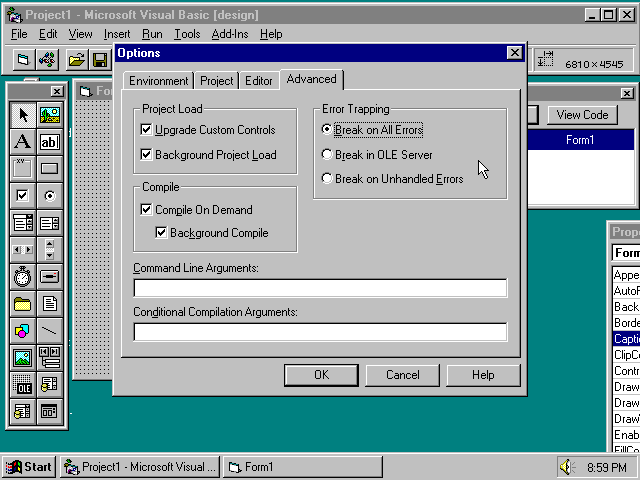
Environment options that customize error handling are located in the Advanced tab of the Options dialog box (see Figure 5.1). To access the Options dialog box, choose Tools | Options. The error-handling options are listed here:
Figure 5.1. The Advanced tab of the Options dialog box.
The Break on All Errors option causes the development environment to switch from Run to Break mode whenever any error occurs—whether or not an error handler is active. This setup allows the programmer to identify the occurrence of errors even when
the error handler is active. Break on All Errors can be especially useful for developing and debugging the error-handling routines.
The Break on Unhandled Errors option is most useful in later debugging and testing of an application, when the programmer is more confident of the error-handling routines and is more interested in unhandled errors.
The Break in OLE Server option is most useful when debugging OLE servers created in Visual Basic. The object application here is another instance of Visual Basic, in which the OLE server is running in the development environment's Run mode while a test
client is being run in the first instance of Visual Basic. If an error condition in the client application occurs, the server application breaks at its current position.
Note
Figure 5.2. Windows 95 with two instances of Visual Basic running.
The tools and mechanics of error handling are, unfortunately, just the tip of the iceberg. There are basically three types of error handling: Inline, Local, and Centralized. The following sections explore the techniques of these different types of error
handling and some of the design issues that make one type more appropriate than another in particular situations.
Caution
Inline error handling disables the default error handling of Visual Basic and checks for errors after each line of error-prone code. This emulates the behavior of languages that do not raise exceptions like the C language. C was designed to give the
programmer ultimate freedom (and consequently ultimate responsibility) for the code he or she writes. Therefore, C programmers have the ability to totally ignore most if not all of the error conditions that occur in the course of execution (at his or her
own risk, I hasten to add). In C you must deliberately check for errors when you expect them to occur, which is to say that you handle them inline. In Visual Basic, inline error handling always begins with the On Error Resume Next construct, which causes
Visual Basic to continue with the next line of code after an error occurs. There are a variety of strategies for processing errors in this way. Microsoft mentions three in the documentation for Visual Basic to which we add a fourth:
Each of these strategies is described in the following sections.
In this strategy, errors occurring when processing information in functions are returned as long integers or as variants from the function itself. The initiating procedure turns off error checking. The following code fragments illustrate this approach:
Sub DoSomethingImportant(strParameter as String)

   Dim vResult as variant

   On Error Resume Next

   vResult = MessAroundWithStrings(strParameter)

   If vResult <> 0 then 'An error occurred in the function

      ...Handle Errors...

   Else

      ...Continue Processing

   End If

   'You might include this line for completeness but it isn't required

   On Error Goto 0

End Sub

Function MessAroundWithStrings(strAString as String) as Variant

   ...Do processing...

   If Err <> 0 then

      MessAroundWithStrings = Err

   Else

      MessAroundWithStrings = 0

   End If

End Function
Note
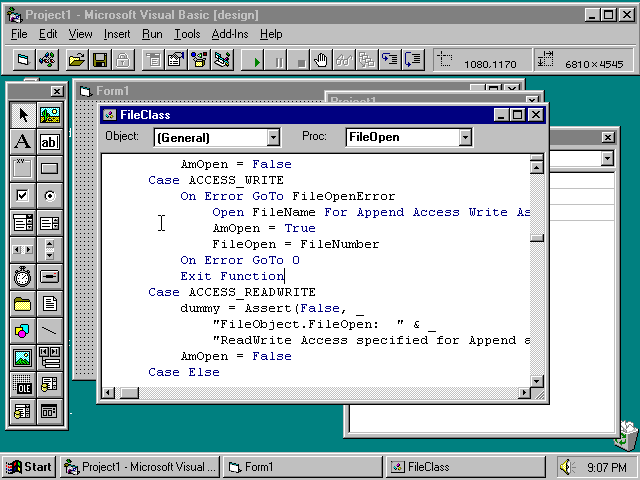
Figure 5.3. The Visual Basic code window with a block of error-handling code.
In this strategy, the root procedure sets error handling to a local or centralized error handler; called subs and functions use the Raise method of the Err object (preferred) or the Error statement to return an error state to the root procedure for
handling. In the following code, note that the function MessAroundWithStrings uses the Raise method of the Err object to return error conditions to the calling sub (DoSomethingImportant). The same action could be accomplished by using the Error statement
(a legacy tool) with the Err objects default property (Number) substituting the line
Err.Raise Err.Number
with the line
Error Err.

Sub DoSomethingImportant(strParameter as String)

   Dim vResult as String

   On Error Resume Goto ErrorHandler

   vResult = MessAroundWithStrings(strParameter)

   Continue processing

   'You might include this line for completeness but it isn't required

   On Error Goto 0

   Exit Sub

ErrorHandler:

   ...Handle Error

   'If successful

   Resume 'This will resume in the sub where the error occurred

   'If not

   ...Exit gracefully...

End Sub

Function MessAroundWithStrings(strAString as String) as String

   ...Do processing on strAString...

   If Err <> 0 then

      Err.Raise Err.Number

   Else

      MessAroundWithStrings = strAString

   End If

End Function
This approach may be the preferred one when a programmer uses programmer-defined errors as a means of communication between procedures or processes in the application. In this way, both system and programmer-defined errors can be handled with the same
code.
In this approach to error handling, the root procedure passes a variant as a parameter to the called functions and procedures. If an error occurs, the type of the variant is set to type Error and the value is set to Err.Number. In the following code, we
pass a separate variant parameter (vResult) the function. MessAroundWithStrings function stores the error number (0 if none) in this parameter. The calling function checks the variant type of vResult. If it is of type vbError, check the Err object for the
current error information and handle the error.
Sub DoSomethingImportant(strParameter as String)

   Dim vResult as Variant

   Dim strResult as String

   On Error Resume Next

   strResult = MessAroundWithStrings(strParameter, vResult)

   If VarType(vResult) = vbError then 'An error occurred in the function

      ...Handle Errors...

   Else

      ...Continue Processing

   End If

   'You might include this line for completeness but it isn't required

   On Error Goto 0

End Sub

Function MessAroundWithStrings(strAString as String, varAResult as Variant) as _String

Dim strBuffer as String

strBuffer = strAString

   ...Do processing on strBuffer...

   If Err <> 0 then

      varAResult =  CVErr(Err.Number)

   Else

      MessAroundWithStrings = strBuffer

   End If

End Function
The variant parameter is another method that is useful for user-defined errors; you can set the value of the vResult parameter to a user-defined error number and set its type to vbError. Using variants of type vbError can be combined with the first
strategy (returning the error value in the return parameter). A combined approach might look like the following code. Note that the function returns a variant instead of a string. In checking the return value, check first to see if it is of type vbError.
Then handle the error or deal with the string information contained in the variant .
Sub DoSomethingImportant(strParameter as String)

   Dim vResult as variant

   On Error Resume Next

   vResult = MessAroundWithStrings(strParameter)

   If VarType(vResult) = vbError then 'An error occurred in the function

      ...Handle Errors...

   Else 'You can treat the variant as a string

      ...Continue Processing

   End If

   'You might include this line for completeness but it isn't required

   On Error Goto 0

End Sub

Function MessAroundWithStrings(strAString as String) as Variant

Dim strBuffer as String

StrBuffer = strAString

   ...Do processing on strBuffer...

   If Err <> 0 then

      MessAroundWithStrings = CVError(Err.Number)

   Else

      MessAroundWithStrings = CVar(strBuffer)

   End If

End Function
This is one of the uses of variants in which the overhead in memory and the loss of speed caused by using variants is probably worth the resulting simplicity and convenience of the code.
Of course, one approach to error handling (and probably the wisest approach) is to program in such a way as to identify or eliminate errors before they occur. One approach is to use this Assert() function. It is based on ASSERT macros from the C
language. Here is the code for the Assert() function that I have developed and (like the Twilight Zone) offer for your consideration:
Function Assert (Condition As Boolean, Message As String,

                           Optional HelpFile as Variant, Optional Context as _Variant) as Boolean

    If Condition = False Then

#If DebugMode Then

       Dim Style, Title

       Style =  vbStop + vbOK

       Title = "ERROR MESSAGE"

        If IsMissing(HelpFile) or IsMissing(Context) then

             MsgBox Msg, Style, Title

        Else

             MsgBox Msg, Style, Title, HelpFile, Context

       Stop

#Else

       Dim fileName As String, fileNum As Integer

       Dim buf As String

       buf = Date$ & Chr$(9) & Time$ & Chr$(9) & Message

       fileName = App.Path & "\error.log"

       fileNum = FreeFile

      Open fileName For Append As #fileNum

            Print #fileNum, Date$, Time$, Message

            Close #fileNum

      End If

#End If

    Assert = Condition

End Sub
Note
The Assert() function requires a condition parameter and a string parameter for a custom message; it optionally accepts help file and context references. The function returns a Boolean based on the condition parameter. The function is set up so that it
goes into Break mode in the Visual Basic IDE after showing an informative message box. In the production executable, the information is written to an error log (so that, if your program bombs on a client's computer, you have the information about errors
written to disk so that you can fix the problem). The following code snippet shows how the Assert() function can anticipate errors:
If Not Assert(FileName <> "", "FileObject.FileRename:  FileName not initialized!") _Then

            'Get a valid FileName or exit gracefully

End If
If any attempt to open the file follows, the runtime error 76 occurs, Path not found. By checking for this condition, the error is avoided and the program can correct the condition.
Local error handling occurs in the procedure itself. The stubs of code discussed in the first part of this chapter on the basics of error handling are examples of localized error handling. Each procedure with error-prone activities has its own
error-handling code. Each procedure can raise unanticipated errors, returning them step by step up the call chain for handling by calling procedures. Notice in the following example code how some error-handling code is local to the MessAroundWithStrings
function. In the previous examples, the error-handling code was located completely in the calling function DoSomethingImportant.
Sub DoSomethingImportant(strParameter as String)

   Dim vResult as variant

   On Error Goto MyHandler

   vResult = MessAroundWithStrings(strParameter)

      ...Continue Processing

   'You might include this line for completeness but it isn't required

   On Error Goto 0

Exit Sub

MyHandler:...Handle Errors from this Sub and from the function it calls

End Sub

Function MessAroundWithStrings(strAString as String) as String

   Dim strBuffer as String

   On Error Goto SecondHandler

   StrBuffer = strAString

   ...Do processing on strBuffer...

   MessAroundWithStrings = strBuffer

   Exit Function

SecondHandler:

   Select Case Err.Number

      Case X

         ...Handle some errors but pass unhandled errors back to calling procedure:

      Case Else

         Err.Raise Number:=Err.Number

   End If

End Function
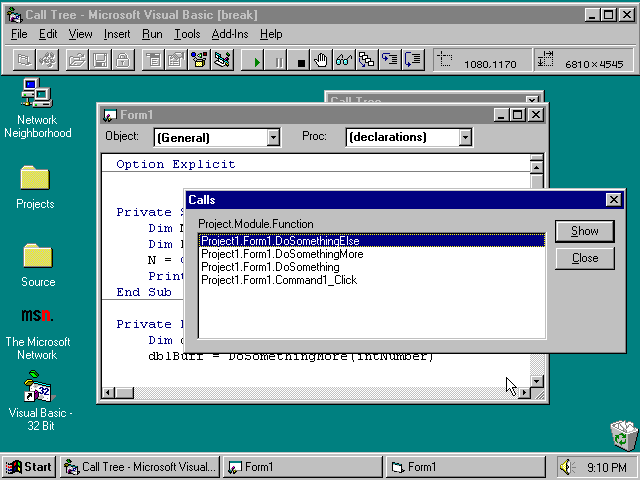
 The Call Tree
Figure 5.4. The Calls dialog box.
Localized error handling can invoke multiple error handlers in the same procedure, as shown in the following example:
Sub DoSomethingImportant(strParameter as String)

   On Error Goto StringHandler

   strParameter = MessAroundWithStrings(strParameter)

      ...Continue Processing

   On Error Goto FileHandler

   Open "Myfile.txt"for Output as #1

   ...Process File

   Close #1

   'You might include this line for completeness but it isn't required

   On Error Goto 0

Exit Sub

StringHandler:

   ...Handle string Errors

   Exit Sub

FileHandler:

   ...Handle file errors

End Sub
The final type of error handling is centralized error handling. Centralized error handling processes all errors through a single error-handling routine. Centralized error handling is difficult to implement in Visual Basic. Theoretically, if you invoke
error handling from a Sub Main, you can then redirect all error handling to a centralized routine. However, this makes for a complicated and error-prone error-handling routine.
A more effective way of doing quasi-centralized error handling is to modularize code and have central error-handling code in code (.BAS), form (.FRM), or class (.CLS) modules based on the function and data of those modules. The new class modules of
Visual Basic 4.0 present a great opportunity for object-oriented programming in Visual Basic.
One of the aspects of object-oriented programming is encapsulation. Encapsulation means isolating the data and processing in one module from all others—that is, creating a black box with clearly defined inputs and outputs. This approach allows you
to develop and, more importantly, reuse error-handling code for specific types of processing.
One useful strategy is to establish programmer-defined errors and then use the Visual Basic Err object and error-handling routines to trap and correct these errors. The documentation for Visual Basic 4.0 suggests that programmers define errors based on
the vbObjectError offset. At press time, the specific offset of the constant has not been determined. If it is important for you to know the numerical value, you can find it by typing ? vbObjectError in the Debug window. You should use the constant
rather than a hard-coded number to maintain forward compatibility in your code.
The documentation also requires user-defined errors to be in the range of 1 to 65,535. Because this range also includes errors reported from OLE controls you may be using in your application, check the error code ranges of these controls. Nonetheless,
you should have a large range of open error codes.
Caution
Suppose that an application depends on a specific data file (such as an initialization file). When the application determines that the initialization file has been deleted, the code can define and raise an error. When the error handler encounters this
error, it can write a default initialization file to disk or prompt the user with a Preferences dialog box to obtain initialization information.
Note
One thing I have come to hate is adding error-handling code to individual modules that perform file I/O. I also find it difficult to keep the syntax of file I/O forever straight in my head. When Visual Basic 4.0 offered the possibility of developing
classes, I thought it was one area that would be very useful to me: developing class wrappers for frequently used code that can be plugged in to any project and accessed with the familiar metaphor of properties and methods. Because file and disk I/O is an
especially error-prone activity, it helps to localize error handling for this activity in a single class module.
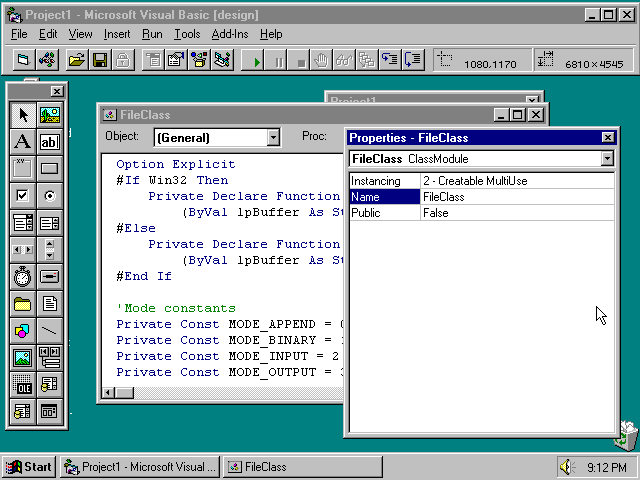
Ordinary and class modules have their own properties in Visual Basic 4.0. Figure 5.5 shows the Properties window for the FileClass class.
Figure 5.5. The Properties window for the FileClass module.
In this case, the FileClass object has properties of Instancing = 2 (Creatable Multiuse),Public = False, and Name = FileClass. This setup means that the objects of this class can be created and accessed only from within the project using the module.
These objects can be created using Dim or GetObject, and there can be multiple instances of this object in use at the same time. Table 5.5 lists the properties and Table 5.6 lists the methods of the FileClass object.
Property (Data Type) |
Description |
|
Name (String) |
Read/Write. This is the fully qualified path to a particular file. |
|
Path (String) |
Read only. This is the path segment of the filename. |
|
Title (String) |
Read only. This is the filename segment of the name. |
|
Mode (Integer) |
Read/Write. This is the mode for which the file is opened. The class supports Input, Output, Append, and Binary modes of file access. |
|
Access (Integer) |
Read/Write. This is the access restriction that you can optionally include in the Open syntax. The options include Read, Write, and ReadWrite. |
|
Length (Long) |
The number of bytes in the file. |
|
DateTime (Variant) |
Returns the date and time of the last revision of the file. |
|
|
|
Method (Returns) |
Description |
|
FileOpen() |
Returns an integer that is the valid file number of the open file. |
|
FileClose |
Closes the file wrapped in the FileClass object. |
|
FileMove strNewPath |
Moves the object's file and resets the object to point at the new location for the file. |
|
FileRename strNewName |
Renames the object's file and resets the object to point at the new location. |
|
FileDelete |
Deletes the object's file from disk and sets a flag to remind the programmer (if necessary) that the file has been deleted. |
|
FileCreate strNewFile |
Creates a new null file, gives an overwrite warning, and resets the file object to point to the new file. |
|
FileCopy strNewName[, varRegisterNew] |
Copies the object's file to another location; optionally points the file object to the new instance of the file if the varRegisterNew parameter equals TRUE. |
|
|
|
The class module begins with the declarations shown in Listing 5.1.
Option Explicit

#If Win32 Then

    Private Declare Function GetWindowsDirectory Lib "kernel32"

        Alias "GetWindowsDirectoryA" (ByVal lpBuffer As String, _

        ByVal nSize As Long) As Long

#Else

    Private Declare Function GetWindowsDirectory Lib "Kernel" _

        (ByVal lpBuffer As String, ByVal nSize As Integer) As Integer

#End If

'Mode constants

Private Const MODE_APPEND = 0

Private Const MODE_BINARY = 1

Private Const MODE_INPUT = 2

Private Const MODE_OUTPUT = 3

'Access constants

Private Const ACCESS_READ = 0

Private Const ACCESS_WRITE = 1

Private Const ACCESS_READWRITE = 2

'File Object MyError Constants

Private Const FOBJ_ERROR_RESUME = 0

Private Const FOBJ_ERROR_RESUMENEXT = 1

Private Const FOBJ_ERROR_FILENAME = 2

Private Const FOBJ_ERROR_UNRECOVERABLE = 3

Private Const FOBJ_ERROR_UNRECOGNIZABLE = 4

'Constants for trappable file I/O errors

Private Const ErrOutOfMemory = 7

Private Const ErrBadFileNameOrNumber = 52

Private Const ErrFileNotFound = 53

Private Const ErrFileAlreadyOpen = 55

Private Const ErrDeviceIO = 57

Private Const ErrFileAlreadyExists = 58

Private Const ErrDiskFull = 61

Private Const ErrBadFileName = 64

Private Const ErrTooManyFiles = 67

Private Const ErrPermissionDenied = 68

Private Const ErrDiskNotReady = 71

Private Const ErrCantRename = 74

Private Const ErrPathFileAccessError = 75

Private Const ErrPathNotFound = 76

'Internal Property Variables

Private FilePath As String

Private FileTitle As String

Private FileName As String

Private FileMode As Integer

Private FileAccess As Integer

Private FileNumber As Integer

Private LastError As Long

'Flag variables

Private AmOpen As Boolean

Private AmDeleted As Boolean
This is pretty standard stuff: constants are defined to increase the readability and maintainability of the code. Two Visual Basic 4.0-specific features are used here: The first is the conditional compilation option; declarations are included for both
the 16-bit and the 32-bit APIs. This way the module can be added to any project for either platform and compile correctly.
The second feature is the use of Public (new to Visual Basic 4.0 from VBA) instead of Global, and the deliberate use of Private variables accessed through Property methods.
At the heart (not at the head) of the module are private utility functions used by the public methods (see Listing 5.2).
'**********************************************************

'

'    Private Utility Functions

'

'

'

'**********************************************************

Private Sub ProcessPathTitleAndName(newName As String)

   Dim BackSlash As Integer

   If InStr(newName, "\") Then

        BackSlash = RInstr(0, newName, "\")

        FilePath = Left$(newName, BackSlash - 1)

        FileTitle = Mid$(newName, BackSlash + 1)

    ElseIf InStr(newName, ":") Then

        Dim CurDrive As String

        Dim TargetDrive As String

        TargetDrive = Left$(newName, 1)

        CurDrive = CurDir$

        If Left$(CurDrive, 1) <> TargetDrive Then

            ChDrive TargetDrive

            FilePath = CurDir$

            ChDrive CurDrive

        Else

            FilePath = CurDir$

        End If

        FileTitle = Mid$(newName, InStr(newName, ":") + 1)

    Else

        FilePath = CurDir$

        FileTitle = newName

    End If

    FileName = FilePath & "\" & FileTitle

End Sub

'=======================================================

Private Sub DoFileCopy(Source As String, Target As String, _

        Optional Overwrite As Variant)

    Dim ErrorMsg As String, SourceNum As Integer, TargetNum As Integer

    Dim buffer As String, TheLength As Long

    ErrorMsg = "FileObject.DoFileCopy: Attempting "

    ErrorMsg = ErrorMsg & "copy/move operation on non-existent file!"

    If Assert(FileExists(Source), ErrorMsg) Then

        SourceNum = FreeFile: TargetNum = FreeFile

        On Error GoTo DoFileCopyError

            Open Source For Binary Access Read As SourceNum

            TheLength = LOF(SourceNum)

            Open Source For Binary Access Read As SourceNum

            Open Target For Binary Access Write As TargetNum

        On Error GoTo 0

        If TheLength < 60000 Then

            'Take the file in bits

            Do Until TheLength < 60000

                buffer = String$(0, 60000)

                Get SourceNum, , buffer

                Put TargetNum, , buffer

                TheLength = TheLength - Len(buffer)

            Loop

            buffer = String$(0, TheLength)

            Get SourceNum, , buffer

            Put TargetNum, , buffer

        Else

            buffer = String$(0, TheLength)

            Get #SourceNum, , buffer

            Put TargetNum, , buffer

        End If

        Close #SourceNum

        Close #TargetNum

    End If

    Exit Sub

DoFileCopyError:

    Dim action As Integer, ErrNumber As Integer

    action = Errors()

    Select Case action

        Case 0

            Resume

        Case 1

            Resume Next

        Case 2, 3

            Exit Sub

        Case Else

            ErrNumber = Err.Number

            Err.Raise ErrNumber

End Select

End Sub

'============================================================

Sub DeletedMsg()

    Dim msg, style

    msg = "You have deleted the file """ & FileName & "."""

    msg = msg & "  You must reinitialize the FileObject with a "

    msg = msg & "new valid file name before proceeding!"

    style = vbCritical + vbOKOnly

    MsgBox msg, style, App.Title

End Sub

'========================================================

Private Function OverwriteWarning(FileName As String) As Integer

    Dim msg As String, style As Integer

    msg = "The file, " & FileName & ", already exists in the current "

    msg = msg & "directory.  Overwrite it?"

    style = vbQuestion Or vbYesNo

    OverwriteWarning = MsgBox(msg, style, App.Title)

End Function

'=========================================================

Private Function RInstr(Start As Integer, Source As String, _

    Goal As String) As Integer

    Dim Index As Integer, N As Integer

    If Start <> 0 Then Index = Start Else Index = Len(Source)

    For N = Index To 1 Step -1

        If Mid$(Source, N, 1) = Goal Then

            RInstr = N

            Exit Function

        End If

    Next

    RInstr = 0

End Function
The module uses the centralized error-handling function shown in Listing 5.3.
Private Function Errors() As Integer

    Dim MsgType As Integer, msg As String, response As Integer

    Dim NewFileNameNeeded As Boolean

    Dim DoResume As Boolean

    Dim DoResumeNext As Boolean

    'Return Value     Meaning     Return Value     Meaning

    '      0          Resume            2          Filename Error

    '      1          Resume Next       3          Unrecoverable Error

    '                                   4          Unrecognized Error

    MsgType = vbExclamation

    Select Case Err.Number

        Case ErrOutOfMemory '7

            msg = "The operating system reports that there is not "

            msg = msg & "enough memory to complete this operation.  "

            msg = msg & "You can try closing some other applications and then "

            msg = msg & "click Retry to try again or you can click Cancel to exit."

            MsgType = vbExclamation + vbRetryCancel

            DoResume = True

            'Resume or Exit

        Case ErrBadFileNameOrNumber, ErrBadFileName

            msg = "That file name is illegal!"

            NewFileNameNeeded = True

            DoResume = True

            'Resume

        Case ErrFileNotFound

            msg = "That file does not exist.  Create it?"

            MsgType = vbExclamation + vbOKCancel

            DoResumeNext = True

            'Resume Next

        Case ErrFileAlreadyOpen

            msg = "That file is already in use."

            MsgType = vbExclamation + vbRetryCancel

            NewFileNameNeeded = True

            'New Name

        Case ErrDeviceIO

            msg = "Internal disk error."

            MsgType = vbExclamation + vbRetryCancel

            DoResume = True

            'Resume

        Case ErrFileAlreadyExists

            msg = "A file with that name already exists.  "

            msg = msg & "Replace it?"

            MsgType = vbExclamation + vbOKCancel

            NewFileNameNeeded = True

            'New Name

        Case ErrDiskFull

            msg = "This disk is full.  Continue?"

            MsgType = vbExclamation + vbOKCancel

            DoResume = True

            'Resume

        Case ErrTooManyFiles

            msg = "The operating system reports that too "

            msg = msg & "many files are currently open.  You "

            msg = msg & "can try closing some other applications "

            msg = msg & "and then try again."

            MsgType = vbExclamation + vbRetryCancel

            DoResume = True

            'Resume

        Case ErrPermissionDenied

            msg = "You have tried to write to a file that is in "

            msg = msg & "use or is designated as read-only."

            NewFileNameNeeded = True

            'New Name

        Case ErrDiskNotReady

            msg = "Insert a disk in the drive and close the door."

            MsgType = vbExclamation + vbOKCancel

            DoResume = True

            'Resume

        Case ErrPathFileAccessError, ErrPathNotFound

            msg = "The operating system cannot locate this file on "

            msg = msg & "this path.  Check to make sure that the file "

            msg = msg & "name and path have been entered correctly "

            msg = msg & "and then try again."

            NewFileNameNeeded = True

        Case Else

            Errors = 4

            Exit Function

    End Select

    response = MsgBox(msg, MsgType, "File Error")

    Select Case response

        Case vbRetry, vbOK

            If NewFileNameNeeded Then

                LastError = FOBJ_ERROR_FILENAME

            ElseIf DoResume Then

                LastError = FOBJ_ERROR_RESUME

            ElseIf DoResumeNext Then

                LastError = FOBJ_ERROR_RESUMENEXT

            Else

                LastError = FOBJ_ERROR_UNRECOVERABLE

            End If

        Case Else

            LastError = FOBJ_ERROR_UNRECOGNIZABLE

    End Select

    Errors = LastError

End Function
The Errors() function is adapted from the example code for centralized error handling in the Visual Basic 4.0 Programmer's Guide. It is changed in a few regards: it relies on constants and is a little more readable. The return values are revised so that
the function can instruct various calling procedures to try for a new filename if that is an easy solution for the error condition. The function also stores the handler's assessment to a variable called LastError.
The properties of the FileClass object are accessed with the Property methods shown in Listing 5.4.
'*****************************************************

'

'   Property Procedures

'      Path, Name, Mode, Access,

'      Length, DateTime,

'

'

'*****************************************************

Public Property Get Path() As String

    If AmDeleted Then

        DeletedMsg

        Exit Property

    End If

    Path = FilePath

End Property

'========================================================

Public Property Let Name(newName As String)

    If Not FileExists(FileName) Then

        Dim msg, style, answer

        msg = "The file, """ & newName & """ does not exist.  "

        msg = msg & "Create it?"

        style = vbQuestion Or vbYesNo

        answer = MsgBox(msg, style, App.Title)

        If answer = vbYes Then

            FileCreate newName

        Else

            Exit Property

        End If

    Else

        ProcessPathTitleAndName newName 'Checks for Drive, Directory, etc.

    End If

End Property

'==========================================================

Public Property Get Name() As String

    If AmDeleted Then

        DeletedMsg

        Exit Property

    End If

    Name = FileName

End Property

'==========================================================

Public Property Get Title() As String

    If AmDeleted Then

        DeletedMsg

        Exit Property

    End If

    Title = FileTitle

End Property

'===========================================================

Public Property Let Mode(NewMode As Integer)

    If AmDeleted Then

        DeletedMsg

        Exit Property

    End If

    If NewMode <> FileMode Then

        FileMode = NewMode

        If AmOpen Then

            Close #FileNumber

            FileOpen

        End If

    End If

End Property

'============================================================

Public Property Get Mode() As Integer

    If AmDeleted Then

        DeletedMsg

        Exit Property

    End If

    Mode = FileMode

End Property

'==============================================================

Public Property Let Access(NewAccess As Integer)

    If AmDeleted Then

        DeletedMsg

        Exit Property

    End If

    If NewAccess <> FileAccess Then

        FileAccess = NewAccess

        If AmOpen Then

            Close #FileNumber

            FileOpen

        End If

    End If

End Property

'===============================================================

Public Property Get Access() As Integer

    If AmDeleted Then

        DeletedMsg

        Exit Property

    End If

    Access = FileAccess

End Property

'================================================================

Public Property Get FileError() As Integer

    FileError = LastError

End Property

'================================================================

Public Property Get Length() As Long

    If AmDeleted Then

        DeletedMsg

        Exit Property

    End If

    Dim FileNum As Integer

    If Assert(FileName <> "", _

            "FileObject.Length:  FileName not initialized!") Then

        FileNum = FreeFile

        Open FileName For Binary Access Read As #FileNum

        Length = LOF(FileNum)

        Close FileNum

    End If

End Property

'===============================================================

Public Property Get DateTime() As Variant

    If AmDeleted Then

        DeletedMsg

        Exit Property

    End If

    If Not Assert(FileName <> "", _

            "FileObject.FileOpen:  FileName not initialized!") Then

        Exit Property

    End If

    If Assert(FileExists(FileName), _

            "FileObject.DateTime:  FileName not initialized!") Then

        DateTime = FileDateTime(FileName)

    End If

End Property
Note
Finally, there are the method subs and functions. Note that subs and functions become methods in a class module simply by being declared as Public (see Listing 5.5).
'**********************************************************

'

'    Methods

'

'      FileOpen, FileClose, FileMove, FileRename,

'      FileDelete and FileError

'

'**********************************************************

Public Function FileOpen() As Integer

    If AmDeleted Then

        DeletedMsg

        Exit Function

    End If

    If Not Assert(FileName <> "", _

            "FileObject.FileOpen:  FileName not initialized!") Then

        Exit Function

    End If

    If AmOpen Then Close #FileNumber

    Dim dummy As Variant

    FileNumber = FreeFile

    Select Case FileMode

        Case MODE_APPEND

            Select Case FileAccess

                Case ACCESS_READ

                    dummy = Assert(False, _

                        "FileObject.FileOpen:  " & _

                        "ReadOnly Access specified for Append action!")

                    AmOpen = False

                Case ACCESS_WRITE

                    On Error GoTo FileOpenError

                    Open FileName For Append Access Write As #FileNumber

                    AmOpen = True

                    FileOpen = FileNumber

                    On Error GoTo 0

                    Exit Function

                Case ACCESS_READWRITE

                    dummy = Assert(False, _

                        "FileObject.FileOpen:  " & _

                        "ReadWrite Access specified for Append action!")

                    AmOpen = False

                Case Else

            End Select

        Case MODE_BINARY

            Select Case FileAccess

                 Case ACCESS_READ

                    On Error GoTo FileOpenError

                    Open FileName For Binary Access Write As #FileNumber

                    AmOpen = True

                    FileOpen = FileNumber

                    On Error GoTo 0

                    Exit Function

                 Case ACCESS_WRITE

                    On Error GoTo FileOpenError

                    Open FileName For Binary Access Write As #FileNumber

                    AmOpen = True

                    FileOpen = FileNumber

                    On Error GoTo 0

                    Exit Function

                Case ACCESS_READWRITE

                    On Error GoTo FileOpenError

                    Open FileName For Binary Access Read Write As #FileNumber

                    AmOpen = True

                    FileOpen = FileNumber

                    On Error GoTo 0

                    Exit Function

                Case Else

            End Select

        Case MODE_INPUT

            Select Case FileAccess

                 Case ACCESS_READ

                    On Error GoTo FileOpenError

                    Open FileName For Input Access Read As #FileNumber

                    AmOpen = True

                    FileOpen = FileNumber

                    On Error GoTo 0

                    Exit Function

                 Case ACCESS_WRITE

                    dummy = Assert(False, _

                        "FileObject.FileOpen:  " & _

                        "Attempting Access Write with Input mode!")

                    Exit Function

                Case ACCESS_READWRITE

                    dummy = Assert(False, _

                        "FileObject.FileOpen:  " & _

                        "Attempting Access Read Write with Input mode!")

                    Exit Function

                Case Else

            End Select

        Case MODE_OUTPUT

            Select Case FileAccess

                 Case ACCESS_READ

                    dummy = Assert(False, _

                        "FileObject.FileOpen: " & _

                        "Attempting Access Read with Output mode!")

                    Exit Function

                 Case ACCESS_WRITE

                    On Error GoTo FileOpenError

                    Open FileName For Output Access Write As #FileNumber

                    AmOpen = True

                    FileOpen = FileNumber

                    On Error GoTo 0

                    Exit Function

                Case ACCESS_READWRITE

                    dummy = Assert(False, _

                        "FileObject.FileOpen:  " & _

                        "Attempting Access Read Write with Output mode!")

                    Exit Function

                Case Else

            End Select

        Case Else

            dummy = Assert(False, _

                "FileObject.FileOpen:  " & _

                "Incorrect File Mode parameter set!")

            Exit Function

    End Select

FileOpenError:

    Dim action As Integer, ErrNumber As Integer

    action = Errors()

    Select Case action

        Case 0

            Resume

        Case 1

            Resume Next

        Case 2, 3

            Exit Function

        Case Else

            ErrNumber = Err.Number

            Err.Raise ErrNumber

            Err.Clear

    End Select

End Function

'=========================================================

Public Sub FileClose()

    If AmDeleted Then

        DeletedMsg

        Exit Sub

    End If

    If Not Assert(FileName <> "", _

        "FileObject.FileOpen:  FileName not initialized!") Then

        Exit Sub

    End If

    If AmOpen Then

        Close #FileNumber

        FileNumber = 0

        AmOpen = False

    End If

End Sub

'========================================================

Public Sub FileMove(NewPath As String)

    If Not Assert(FileName <> "", _

        "FileObject.FileMove:  FileName not initialized!") Then

        Exit Sub

    End If

    'Check Drive Spec

    Dim newName As String, SourceNum As Integer, TargetNum As Integer

    If Right$(NewPath, 1) = "\" Then   'Get the path in shape

        newName = NewPath & FileTitle

    Else

        newName = NewPath & "\" & FileTitle

    End If

    If InStr(NewPath, ":") Then   'There is a drive spec included

        If Left$(newName, 1) <> Left$(FileName, 1) Then

            'Different drive, Name command won't work

            DoFileCopy FileName, newName

            Kill FileName

            ProcessPathTitleAndName newName

        End If

    Else

        On Error GoTo FileMoveError

        Name FileName As newName

        On Error GoTo 0

        ProcessPathTitleAndName newName

    End If

    Exit Sub

FileMoveError:

    Dim action As Integer, ErrNumber As Integer

    action = Errors()

    Select Case action

        Case 0

            Resume

        Case 1

            Resume Next

        Case 2, 3

            Exit Sub

        Case Else

            ErrNumber = Err.Number

            Err.Raise ErrNumber

            Err.Clear

    End Select

End Sub

'==============================================================

Public Sub FileRename(newName As String)

    If Not Assert(FileName <> "", _

        "FileObject.FileRename:  FileName not initialized!") Then

        Exit Sub

    End If

    On Error GoTo FileRenameError

    If InStr(newName, ":") Then  'there is a drive spec

        If Left$(newName, 1) <> Left$(FileName, 1) Then

            DoFileCopy FileName, newName

            Kill FileName

        Else

            Name FileName As newName

        End If

    Else

        Name FileName As newName

    End If

    On Error GoTo 0

    ProcessPathTitleAndName newName

FileRenameError:

    Dim action As Integer, ErrNumber As Integer

    action = Errors()

    Select Case action

        Case 0

            Resume

        Case 1

            Resume Next

        Case 2, 3

            Exit Sub

        Case Else

            ErrNumber = Err.Number

            Err.Raise ErrNumber

            Err.Clear

    End Select

End Sub

'===============================================================

Public Sub FileDelete()

    If Not Assert(FileName <> "", _

        "FileObject.FileOpen:  FileName not initialized!") Then

        Exit Sub

    End If

    If AmOpen Then Close #FileNumber

    If AmDeleted Then

        DeletedMsg

        Exit Sub

    End If

    Kill FileName

    AmDeleted = True

    FileNumber = 0

End Sub

'===================================================

Public Sub FileCreate(newName As String)

    Dim FileNum As Integer

    Dim choice As Integer

    If FileExists(newName) Then

        choice = OverwriteWarning(newName)

        If choice = vbNo Then Exit Sub

    End If

    FileNum = FreeFile

    Open newName For Output As #FileNum

    Close FileNum

    ProcessPathTitleAndName newName

End Sub

'===================================================

Public Sub FileCopy(newName As String, Optional RegisterNew As Variant)

    If Not Assert(FileName <> "", _

        "FileObject.FileOpen:  FileName not initialized!") Then

        Exit Sub

    End If

    DoFileCopy FileName, newName

    If Not IsMissing(RegisterNew) And RegisterNew = True Then

        ProcessPathTitleAndName newName

    End If

End Sub
The functions shown in Listing 5.6 are called when an instance of type FileClass is created or destroyed.
'**********************************************************

'

'    Class Initialization and Destruction

'

'

'

'**********************************************************

Private Sub Class_Initialize()

    Dim nResult As Integer

    Dim buffer As String

    'Initializes the object to an ubiquitous file

    'This works in tandem with the inifile object

    'by setting things to point to WIN.INI

    FileTitle = "WIN.INI"

    buffer = String$(200, 0)

    nResult = GetWindowsDirectory(buffer, Len(buffer))

    FilePath = Left$(buffer, nResult)

    FileName = FilePath & "\" & FileTitle

    FileMode = MODE_BINARY

    FileAccess = ACCESS_READWRITE

End Sub

Private Sub Class_Terminate()

    If FileNumber <> 0 Then

        Close #FileNumber

    End If

End Sub
When a file object is first initialized, the default filename, mode, and access values are set. When the object is terminated (that is, when the object variable is Set equal to Nothing or when the object variable goes out of scope), if a file is open,
that file is closed.
To use a FileClass object in your programs, you follow these basic steps:
After these steps are completed, you can address the FileClass object in your code with a sequence like the following, which opens an initialization file and populates an array with all the section names in the file:
With myFile

        .Access = ACCESS_READ

        .Mode = MODE_INPUT

    End With

    FileNum = myFile.FileOpen()

    'Clear and refill the Sections array

    Erase mySections

    counter = 0

    Do

        Line Input #FileNum, buf

        If Len(buf) <> 0 Then

            If Left$(buf, 1) = "[" Then ' it's a section name

                ReDim Preserve mySections(counter + 1)

                Index = InStr(2, buf, "]") - 2

                mySections(counter) = Mid$(buf, 2, Index)

                counter = counter + 1

            End If

        End If

    Loop Until EOF(FileNum)

    myFile.FileClose
To take full advantage of the module, you must include the following declarations in a form or module of your program:
'Mode constants

Public Const MODE_APPEND = 0

Public Const MODE_BINARY = 1

Public Const MODE_INPUT = 2

Public Const MODE_OUTPUT = 3

'Access constants

Public Const ACCESS_READ = 0

Public Const ACCESS_WRITE = 1

Public Const ACCESS_READWRITE = 2

'File Object MyError Constants

Public Const FOBJ_ERROR_RESUME = 0

Public Const FOBJ_ERROR_RESUMENEXT = 1

Public Const FOBJ_ERROR_FILENAME = 2

Public Const FOBJ_ERROR_UNRECOVERABLE = 3

Public Const FOBJ_ERROR_UNRECOGNIZABLE = 4
This inconvenience is necessary because class modules in Visual Basic 4.0 cannot contain public constant declarations; to use constants, you have to declare them elsewhere in your application.
Error handling is an important aspect of professional-quality programming. It protects the users of your software from the mystifying disappearance of the program and from the frustrating loss of data. The basic mechanisms of error handling in Visual
Basic 4.0 are similar to earlier versions and other flavors of the Basic language. Visual Basic 4.0 gives richer and finer control of error reporting through the Err object, the Error object, and Errors collection for data access and with new programming
environment options. Finally, design issues like the types of errors anticipated and the modular design of the application determine which pattern of error handling (Inline, Local, or Centralized) is best for a particular situation.